Customer Portal Access Requirements
All Customers can be granted access to Customer Portal, allowing them to:
- Create & Send consignments to available Carrier accounts (admin controlled)
- Create and manage all Users logins for the Customer's account
- Manage Customer's Sender & Receiver Address Books
- Manage default Customer settings for Consignments & Addresses
- Users are responsible to create & manage their own Password & User Settings
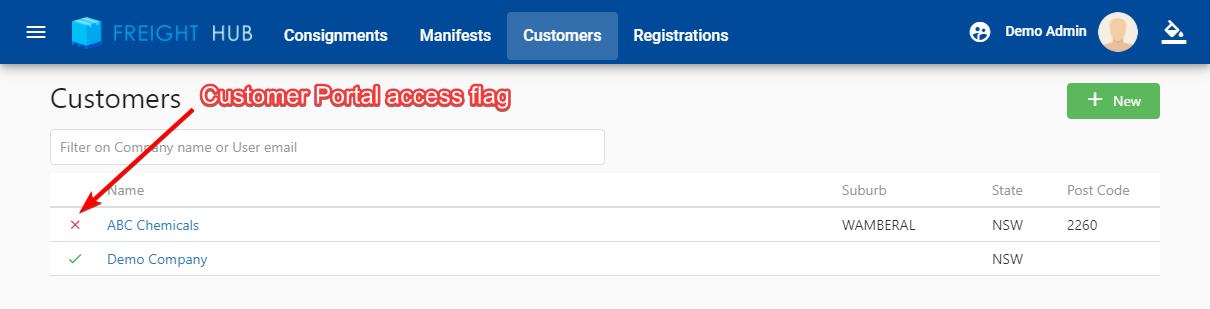
Customers that have been granted Portal access will appear in the Customer list with a green check mark next to them and those with a red check mark do not have any Portal access:
Granting Portal Access to a Customer
Before Users can be added to a Customer account, you will need to ensuure that Portal access has been granted as below.
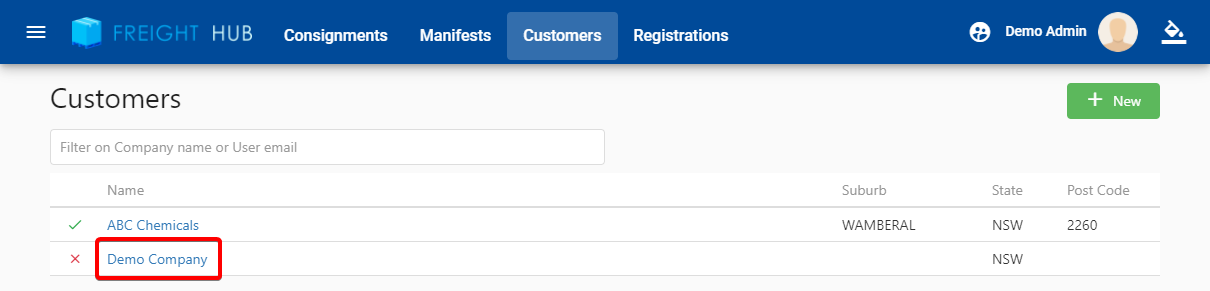
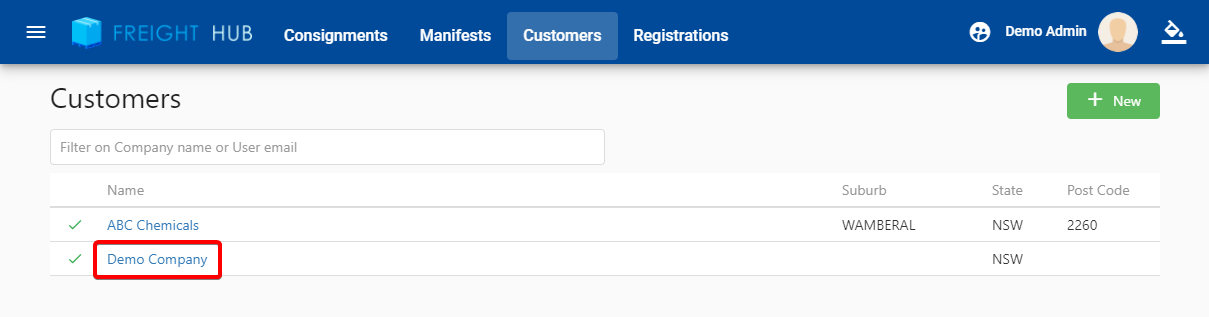
- Select the desired Customer from the Customer list:
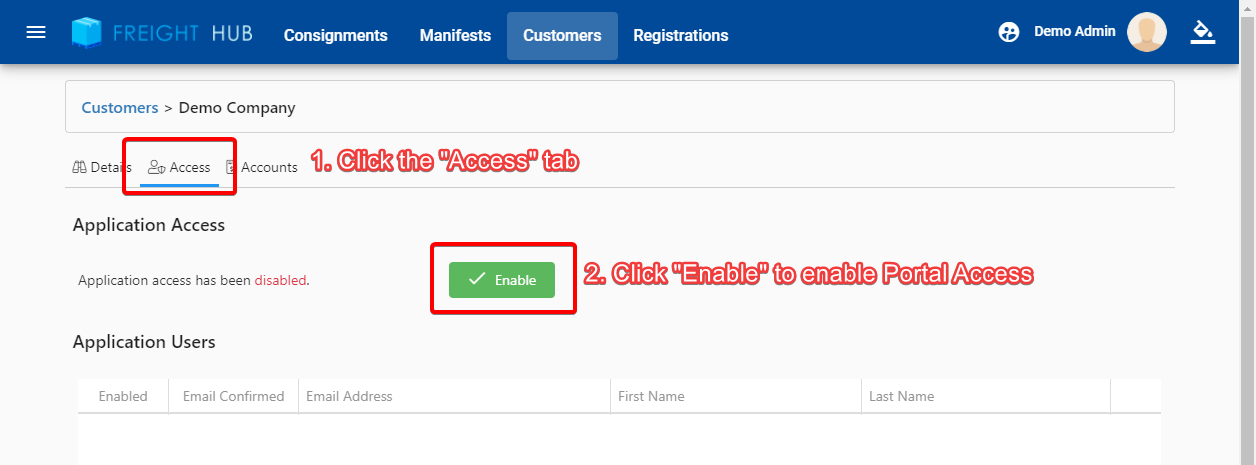
- Click the "Access" tab and then click "Enable" to enable Portal access:
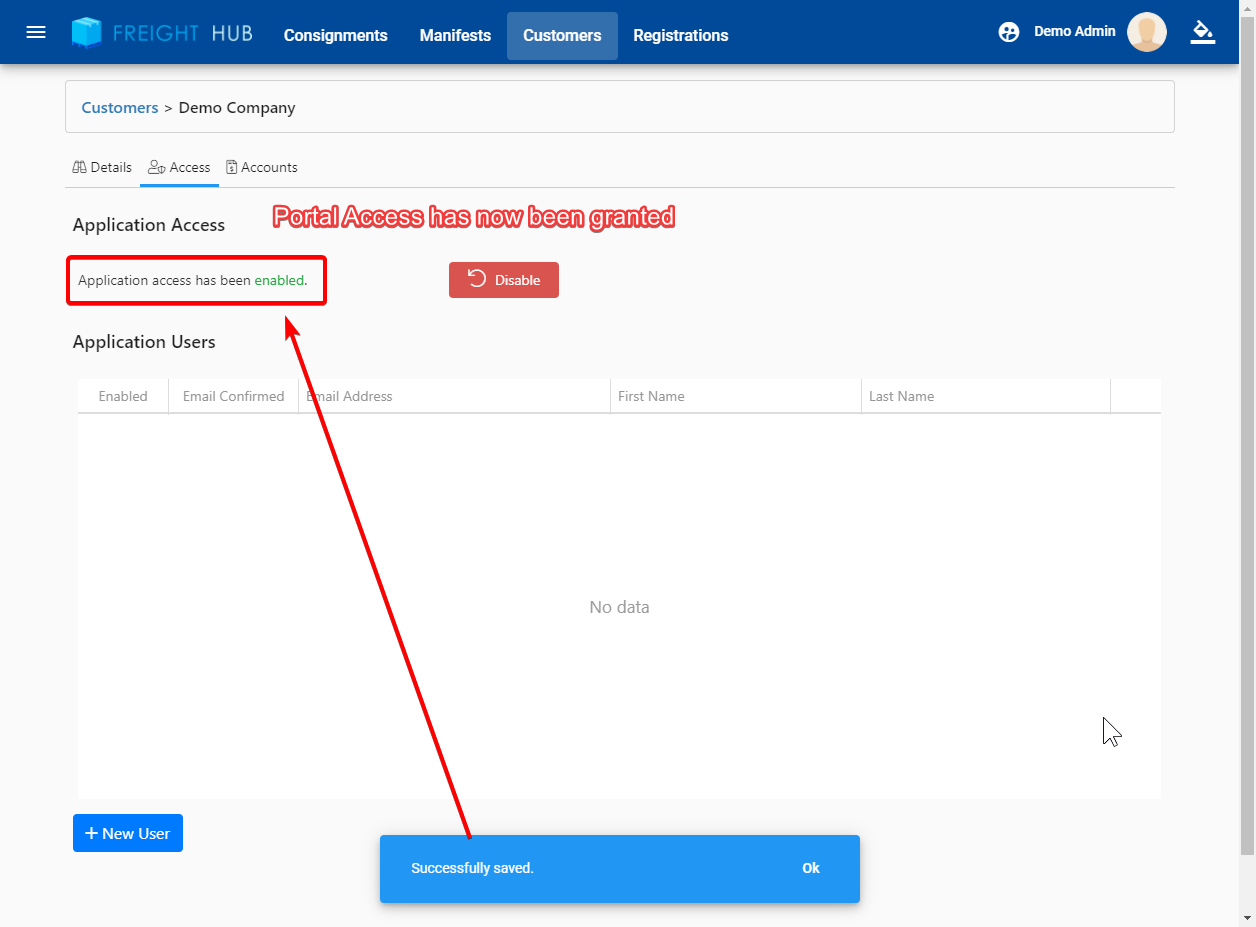
- Customer Portal Access has now been granted:
Once Portal access has been granted to a Customer, you may create & invite a new user using the steps below.
Creating & Inviting a new User to the Customer Portal
Customer Portal access is on a per-user basis using a unique email for each user login in the Portal. Please read the following notes
- At least 1 User account is required for each Customer before they can access the Customer Portal
- You can create and invite multiple Users for each Customer at once
- All Customer Users have equal permissions in the Portal as there are no distinct "Admin only" features in the Customer Portal.
- Once the first Customer User has registered, they can also invite more Users to their account at their own discretion.
Create a new Customer User & send a Portal Invite
- Select the Customer from the Customer list:
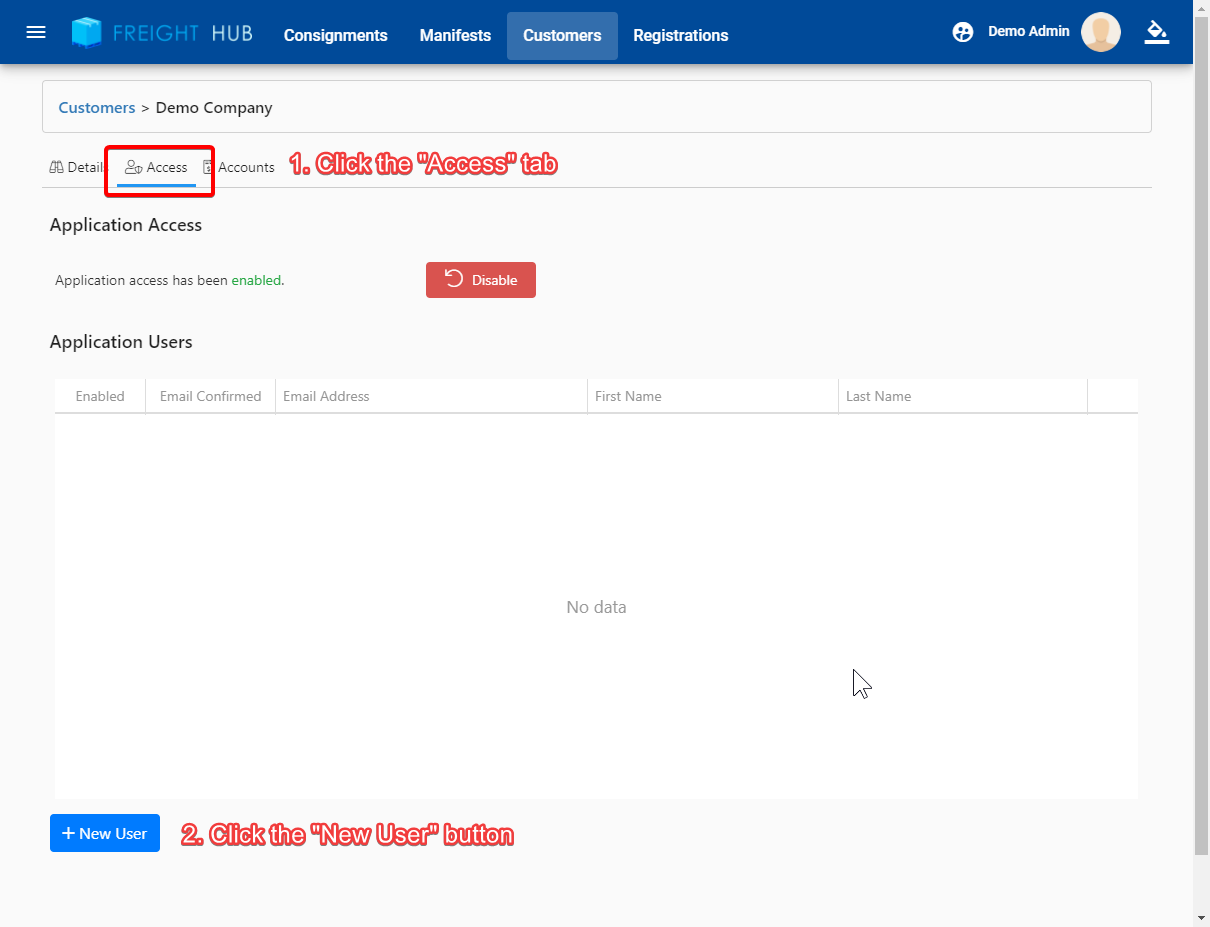
- Click on the "Access" tab and then Click the "New User" button at the bottom of the screen:
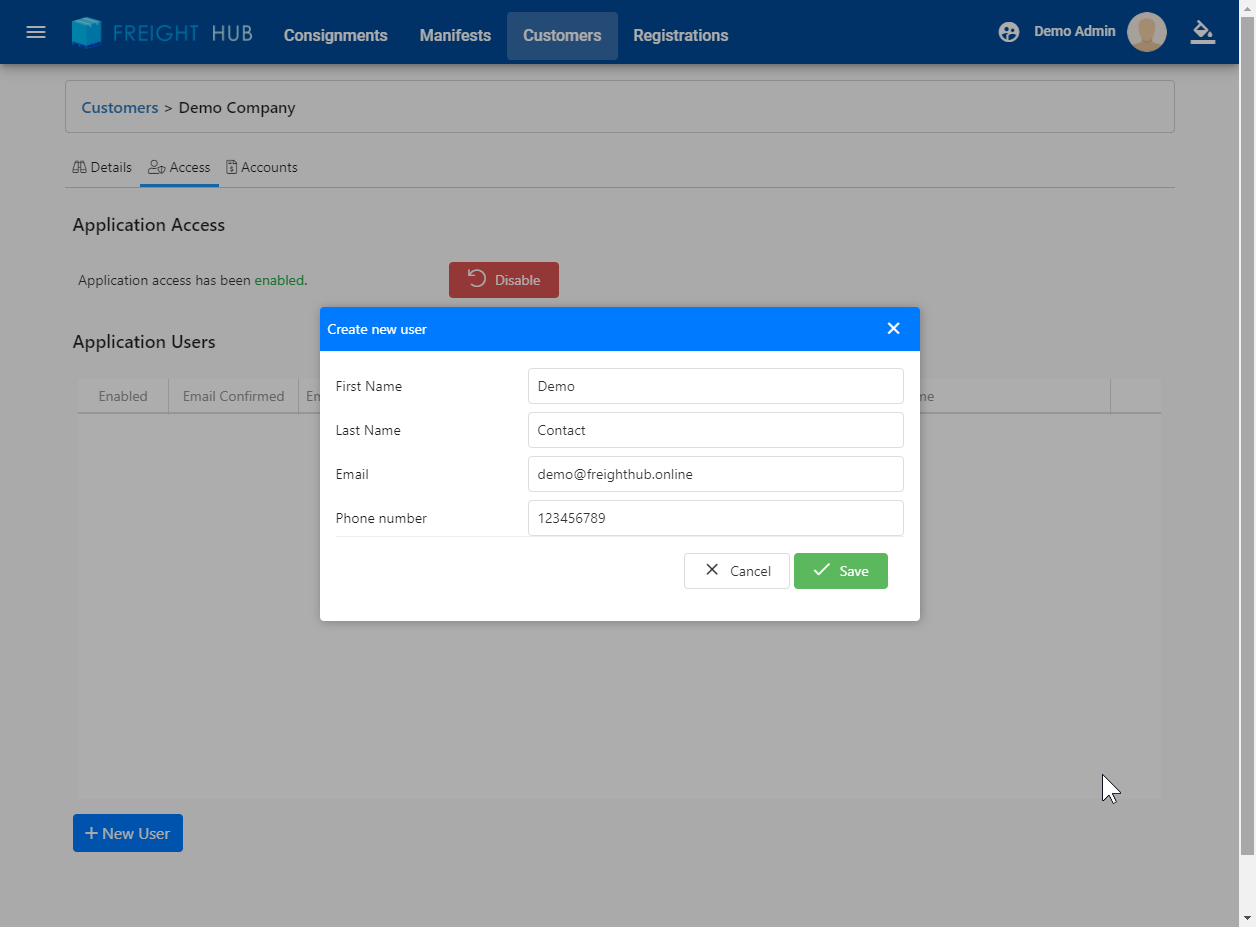
- Fill in the correct User details as necessary (the first user added will default to the Customer contact as below):
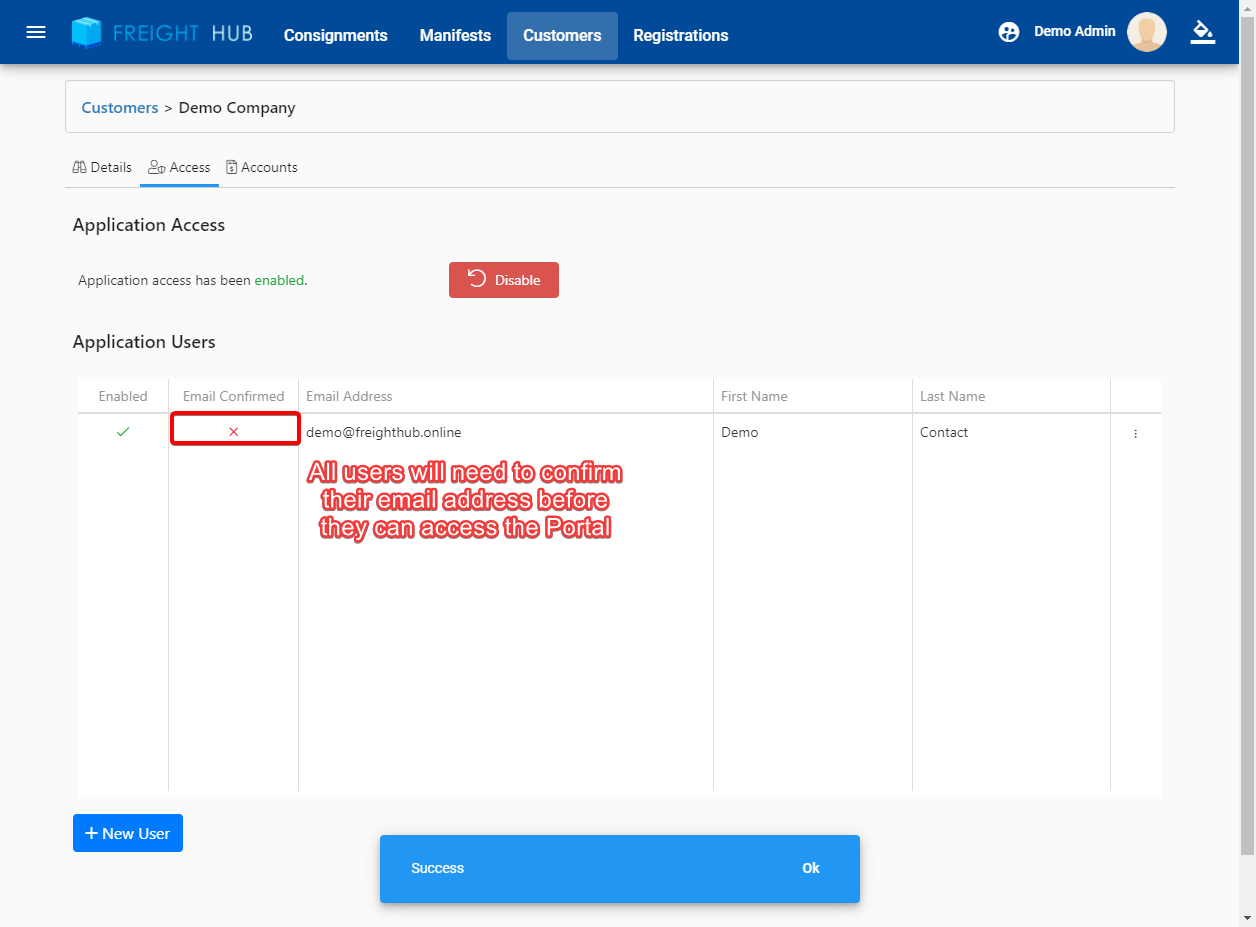
- The User will be added to the list and an invite is automatically sent with a request to verify their email address:
User Email verification
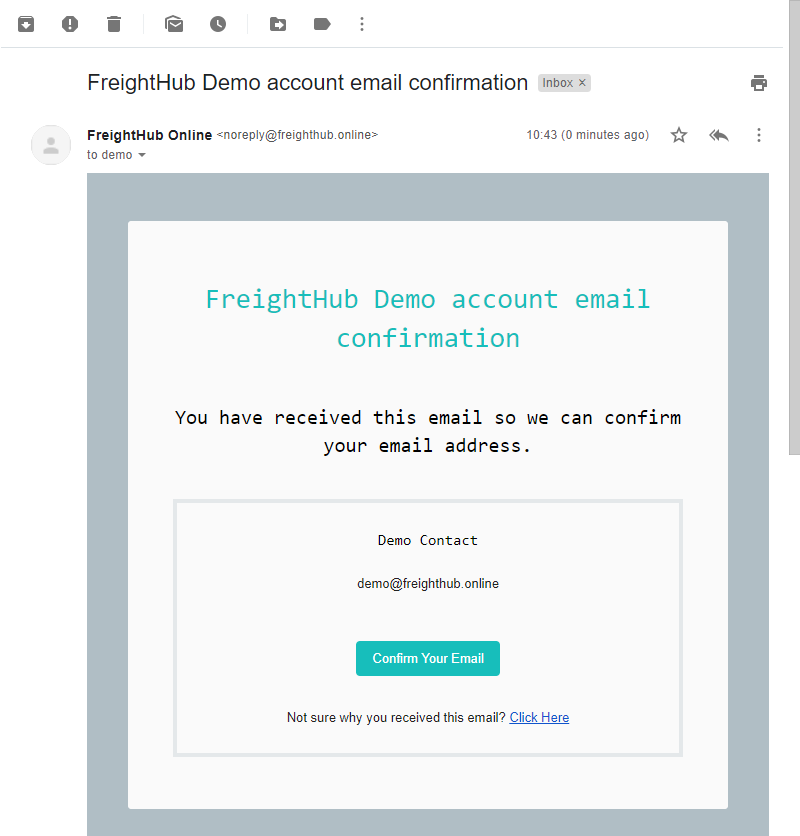
All Users are required to validate their email address before they can access the Customer Portal. Each user will receive an email similar to the following with instructions and links for completing their registration process.
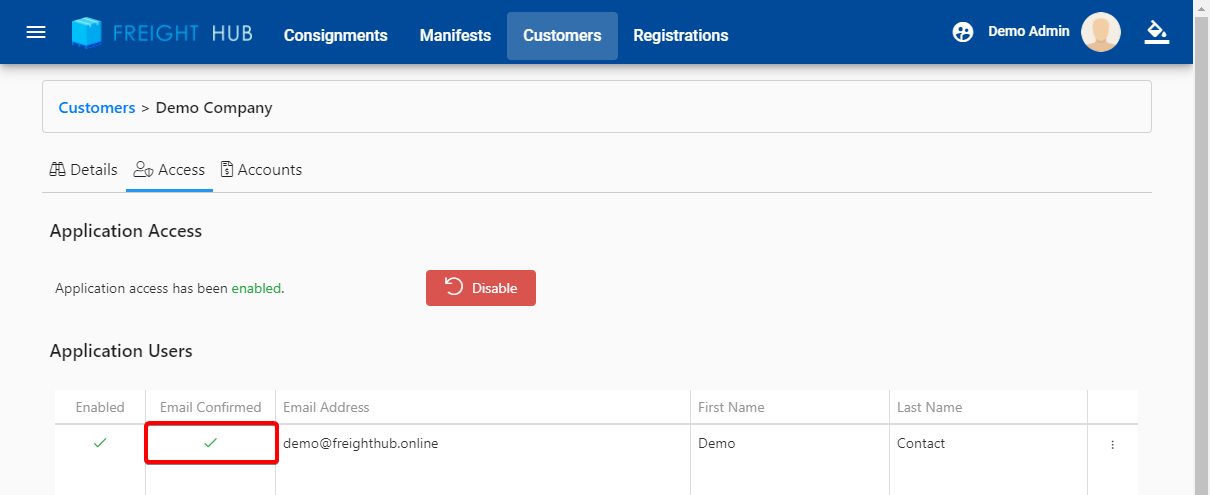
Once the User has completed the registration process, they will receive a check mark in the Customer User list:
More information can be found in our User Registration guide.