Step 1. Register for a company account
You must first register for a company account which will be reviewed for approval by your portal administrators. Once portal access is granted, you can then register additional company users without further registration or approval requirements.
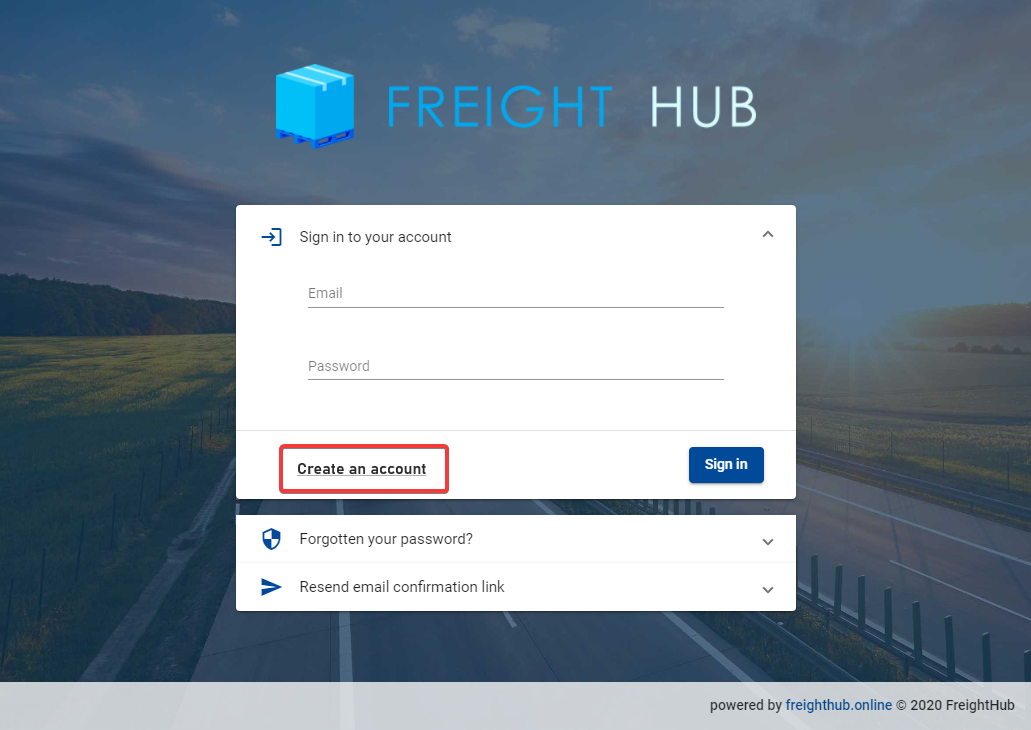
Using the URL provided to you by your provider and you will be taken to a home page similar to below with your provider's logo and home page. To register, simply click on the "Create an account" link below:
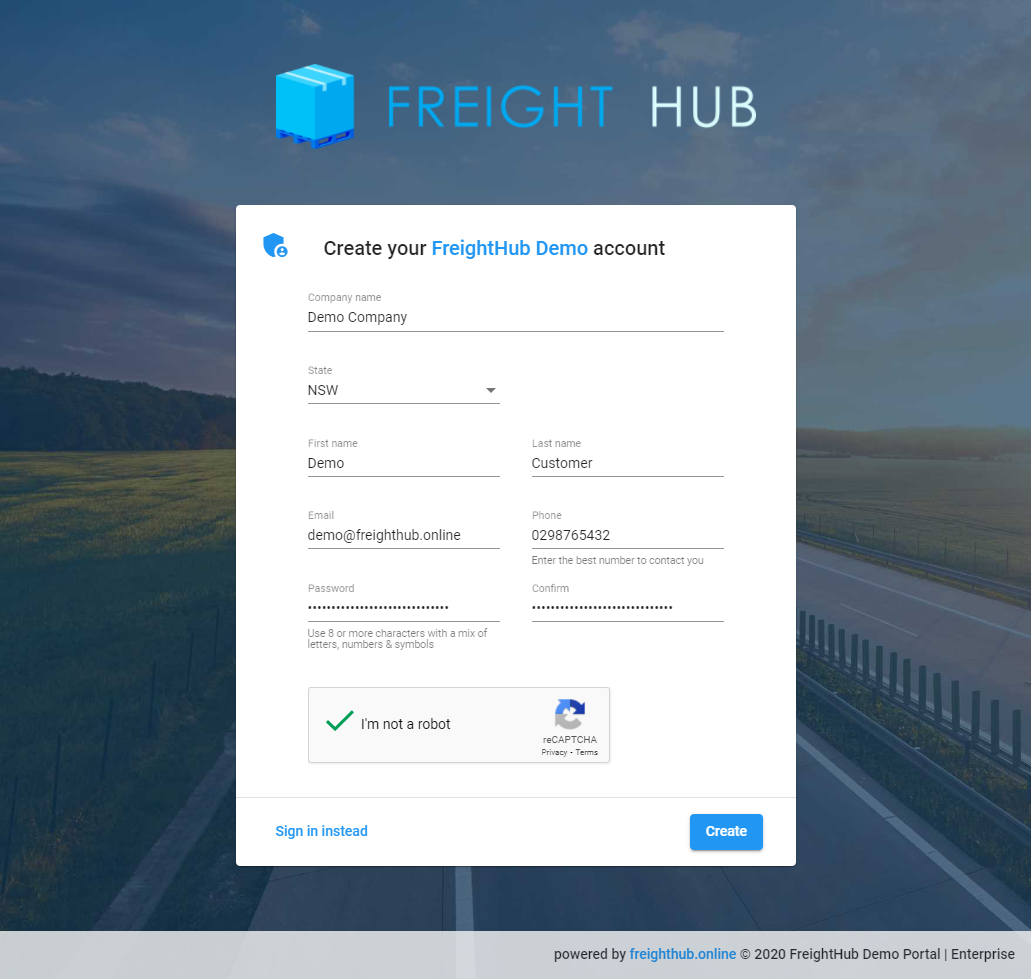
Please fill in all fields in the Account sign up page, then click "Create"
If successful, you will then see a confirmation with an email verification message:

Step 2. Verify your company email address
You will receive an automated email asking you to confirm your email address. Please click on the "Confirm Your Email" link:
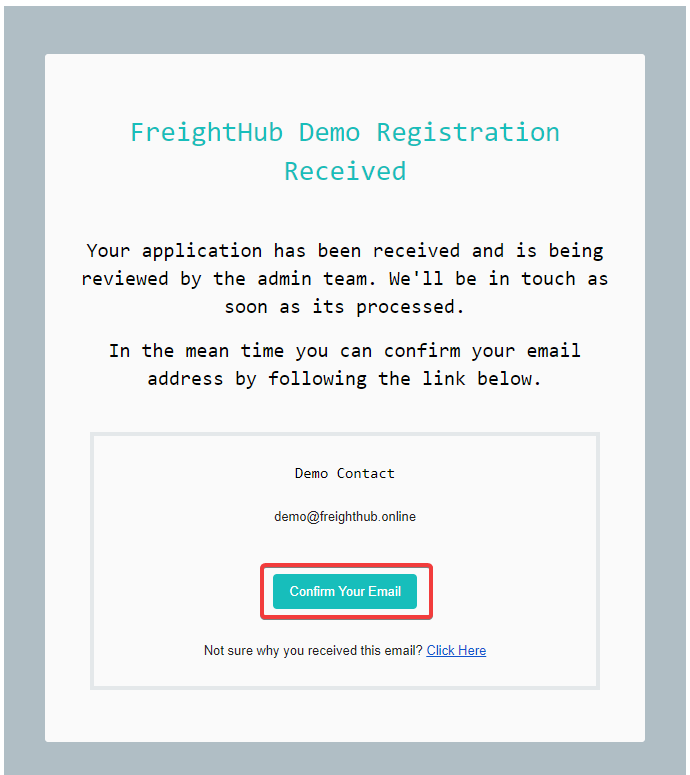

(Please check your SPAM/JUNK folder if the email does not arrive)
Step 3. Company portal registration approved
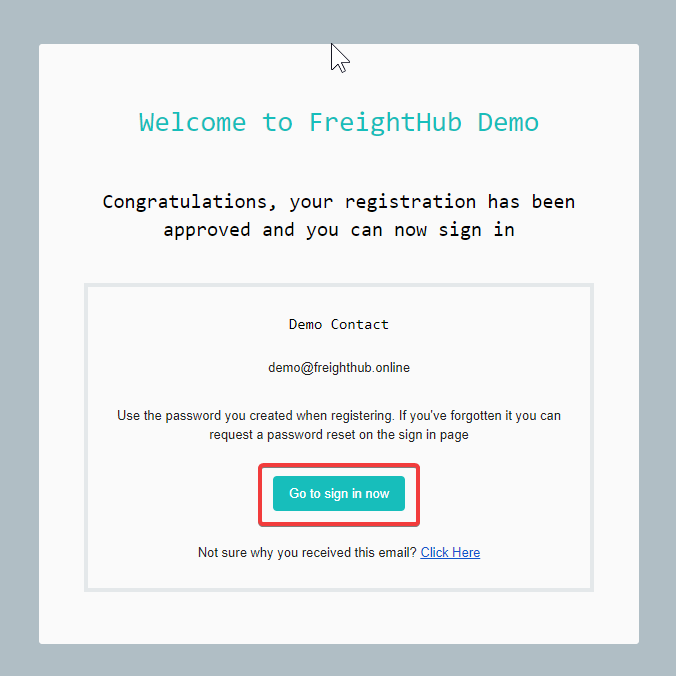
If your company registration is apprvoed, you will receive a confirmation email as below. Click on the "Go to sign in" link in the email to go to the login page:
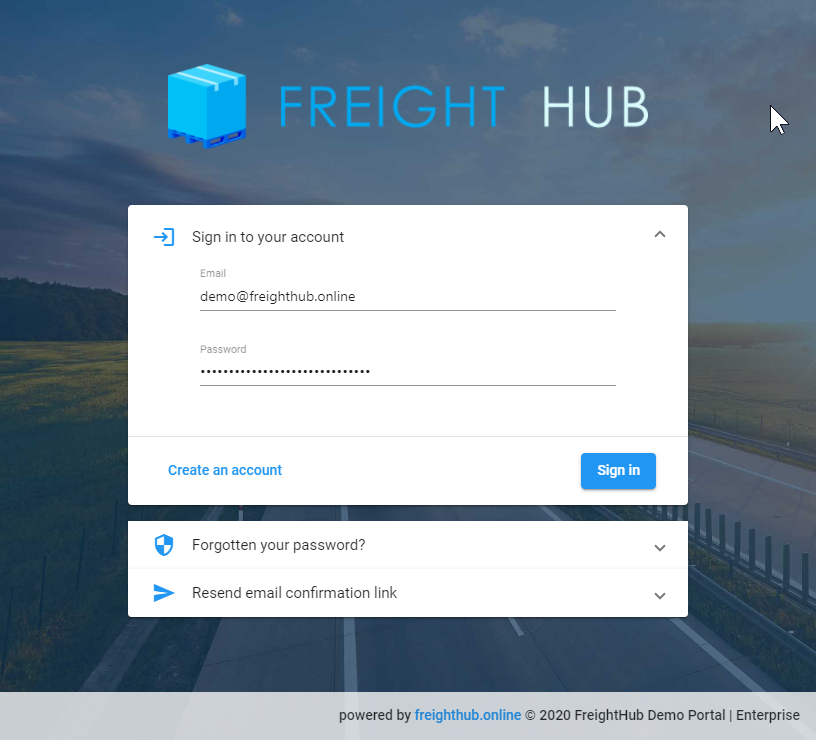
Use the registered email and password used to create your account to sign in.
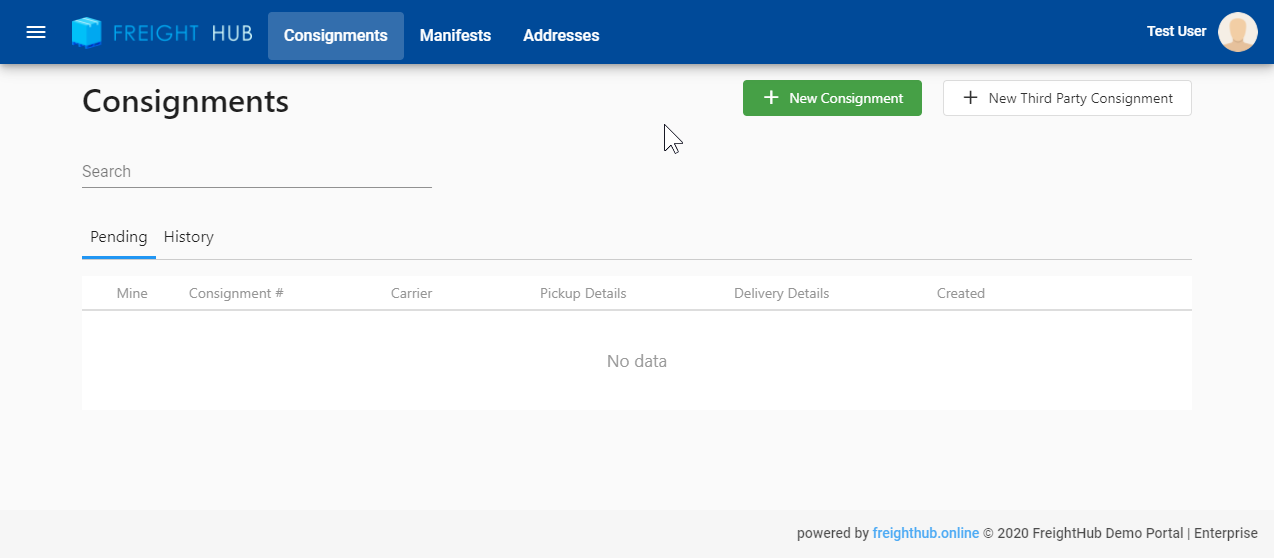
You will then be redirected to the portal home page: